LocalMind Demo Gallery
This document collects the recorded demo GIFs and explains what each one shows. GIF numbers are renumbered sequentially for the final gallery, so the list has no skipped numbers.
Each GIF is clickable: the preview plays directly in GitHub, and clicking it opens the hosted viewer page.
Table of contents
- End-to-end videos
- 0. Demo overview
- 1. End-to-end video workflows
- 2. Recorded GIF use cases
- 3. Recommended sample files
- 4. Suggested folder structure
- 5. Recorded coverage map
End-to-end videos
Full end-to-end demos show the complete LocalMind workflow from the user's point of view: creating or selecting a workspace, adding documents, indexing them, searching, taking notes, and asking questions through RAG chat.
E2E-1 — Full knowledge base workflow
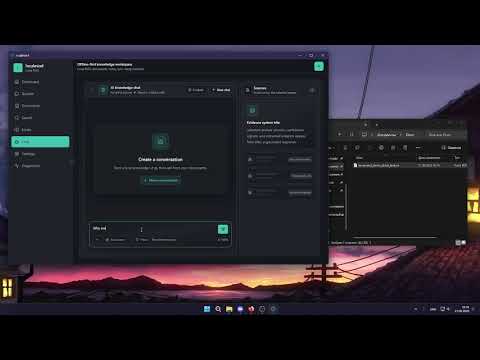
Video: Full knowledge base workflow | LocalMind
Use case: Complete local knowledge base workflow
Action: Create a bucket, upload a document, wait for indexing, preview the document, search through it, create notes, and ask a question in RAG chat.
Result: LocalMind shows the full local cycle: document upload → indexing → search → notes → grounded chat answer with sources.
What this video demonstrates:
- Local runtime status on the Dashboard
- Bucket creation
- Document upload
- Ingestion and indexing status
- Document preview
- Semantic search results
- Notes and markdown annotations
- RAG chat answer
- Source panel with document references
E2E-2 — Quick document-to-answer workflow
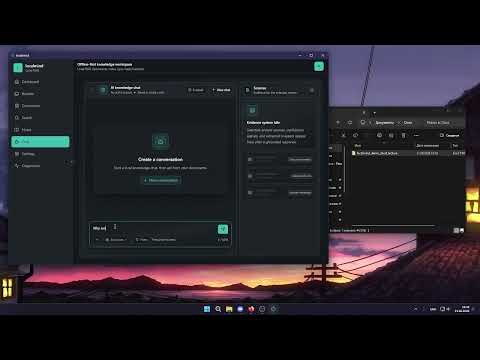
Video: Quick document to answer workflow | LocalMind
Use case: Fast document-to-answer workflow
Action: Upload a document without manually creating a bucket, wait until it is indexed, then ask a quick question in chat and verify the result through search.
Result: The user can drop in a file and quickly get useful answers without setting up a full structure first.
What this video demonstrates:
- Quick document upload
- Default or all-buckets workflow
- Queued ingestion
- Indexed document state
- Chat question based on the uploaded document
- Source panel
- Search result/snippet from the same document
E2E-3 — Watched folders and companion workflow
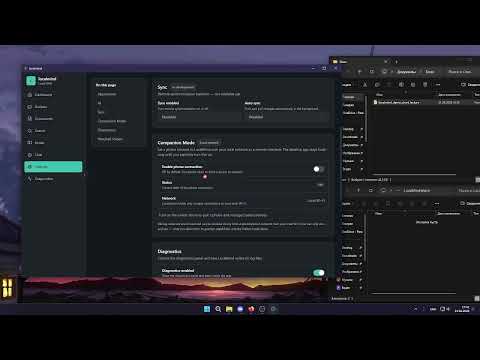
Video: Watched folders and companion workflow | LocalMind
Use case: Automated local knowledge base with companion preview
Action: Enable watched folders, add a folder for auto-ingestion, rescan it, check the indexed document, and continue through Companion preview with documents, search, chat, and activity.
Result: LocalMind works as an automated local knowledge base that watches selected folders and exposes document status, search, chat, and activity through the companion-style interface.
What this video demonstrates:
- Watched folder setup
- Auto-ingestion
- Rescan workflow
- Automatically added document
- Indexing status
- Companion preview
- Companion Documents
- Companion Search
- Companion Chat
- Companion Activity
- Cleanup/rescan maintenance actions
0. Demo overview
LocalMind is presented as a local-first personal knowledge base:
- Launch the application and confirm that the local runtime is available.
- Create or select a workspace/bucket.
- Add documents manually or through watched folders.
- Wait for indexing.
- Search indexed content with semantic and scoped search.
- Create notes and annotations.
- Ask questions in RAG chat.
- Verify answers through source references.
The main message of the demo is simple: LocalMind covers the full local workflow from raw files to searchable, grounded answers.
1. End-to-end video workflows
These are the larger videos that should be placed in demo-assets/e2e/ when exported.
| File | Title | Purpose |
|---|---|---|
01-full-knowledge-base-workflow.mp4 |
Full knowledge base workflow | Bucket creation, document upload, indexing, preview, search, notes, chat, and sources. |
02-quick-document-to-answer.mp4 |
Quick document-to-answer workflow | Upload one document and ask a question without manual organization. |
03-watched-folders-companion.mp4 |
Watched folders and companion workflow | Auto-ingestion from watched folders and companion/mobile preview. |
2. Recorded GIF use cases
Startup and app state
GIF-01 — Application launch and runtime status
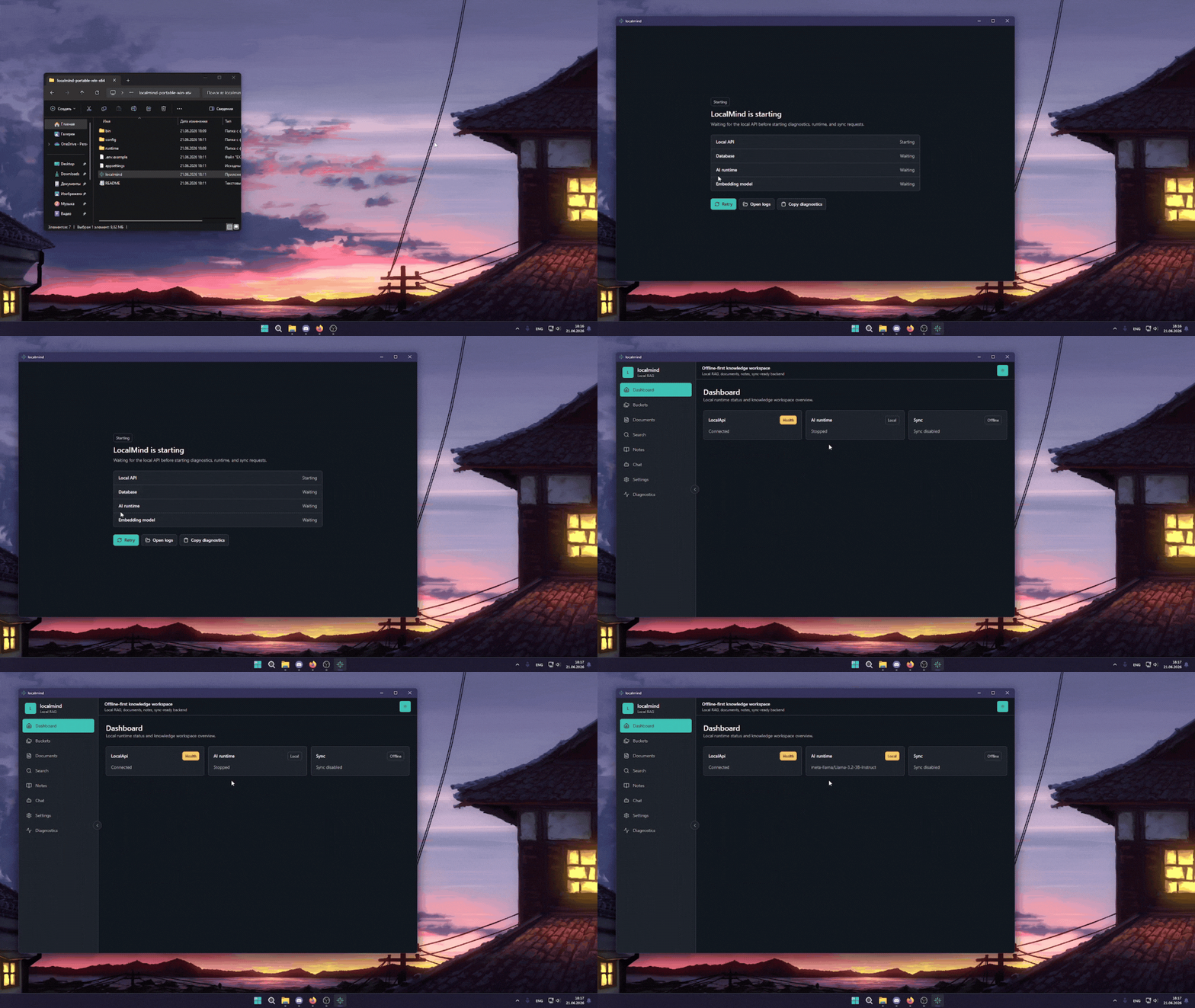
Use case: Launch LocalMind
Action: Open the Dashboard and check the Local runtime status.
Result: The user sees that LocalMind and the local runtime are ready to work.
GIF-02 — Theme switching
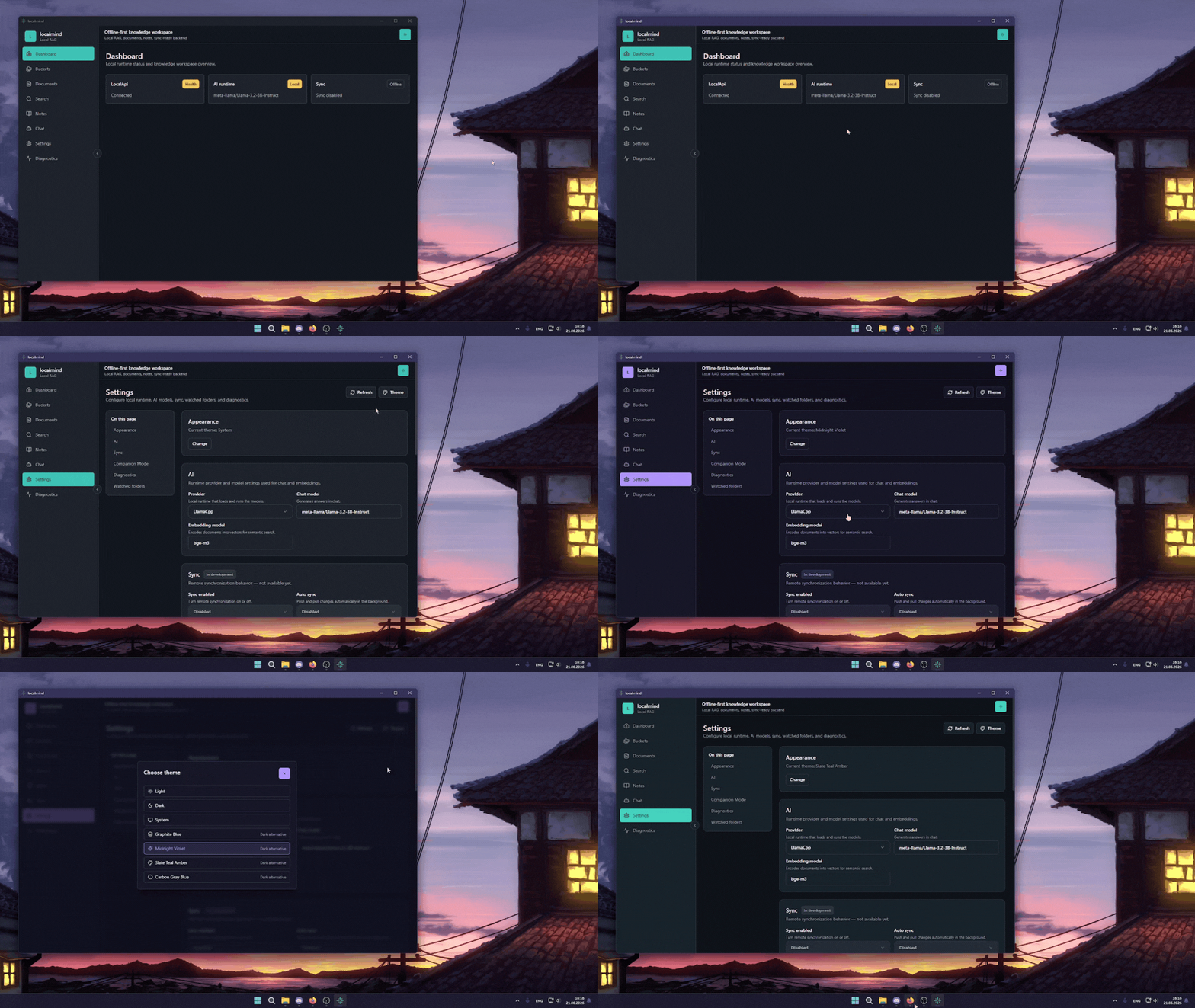
Use case: Change the UI theme
Action: Open Settings, select Theme, and switch to another appearance mode.
Result: The interface updates immediately and confirms that themes can be changed from Settings.
GIF-03 — Developer mode and runtime paths

Use case: Inspect diagnostics and local paths
Action: Open Settings, enable Developer mode, and reveal runtime paths.
Result: The user can see where LocalMind stores runtime data and diagnostic files.
Buckets
GIF-04 — Create a bucket
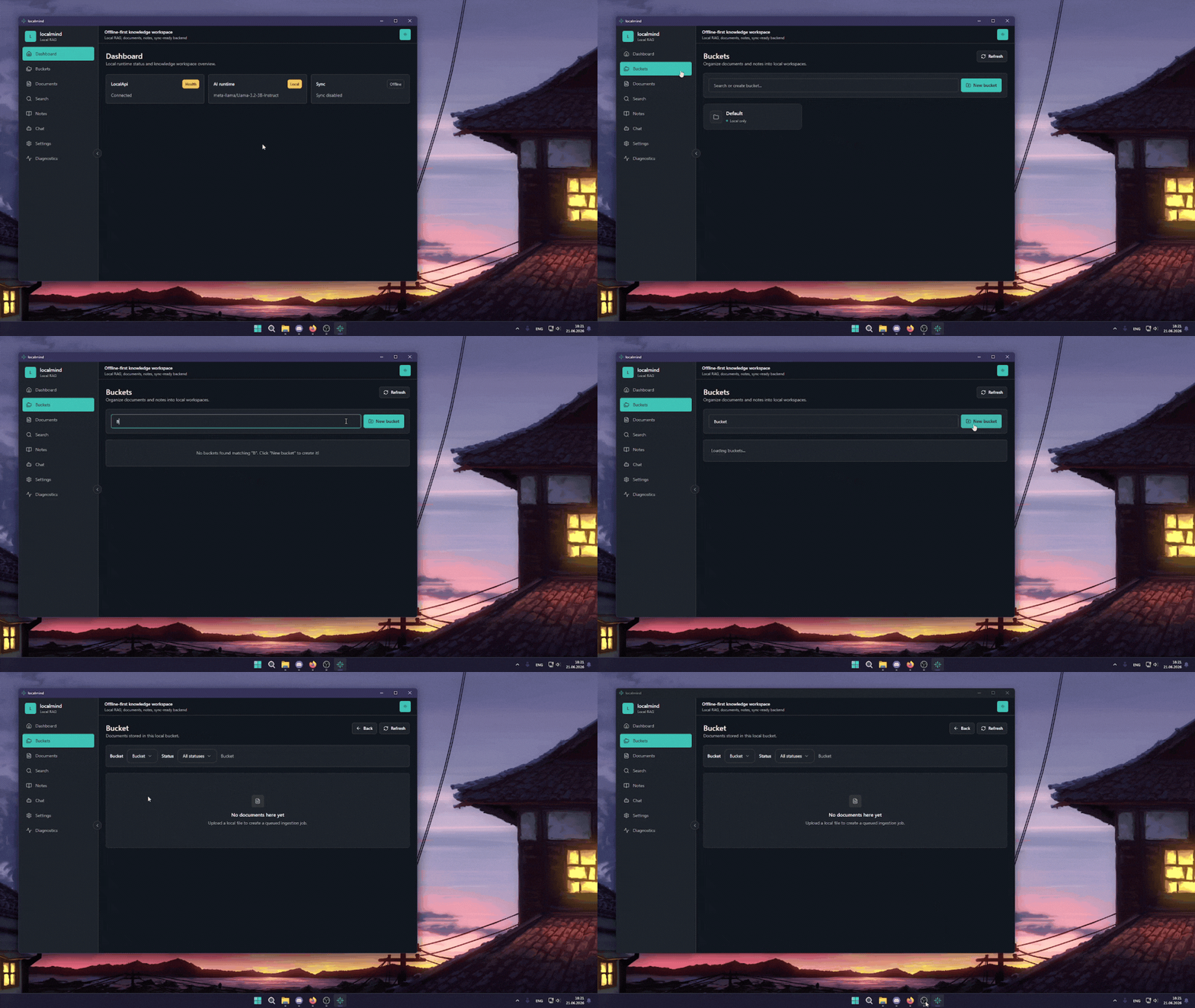
Use case: Create a new knowledge workspace
Action: Enter a bucket name and click New bucket.
Result: A new bucket card appears in the Buckets list.
GIF-05 — Search buckets
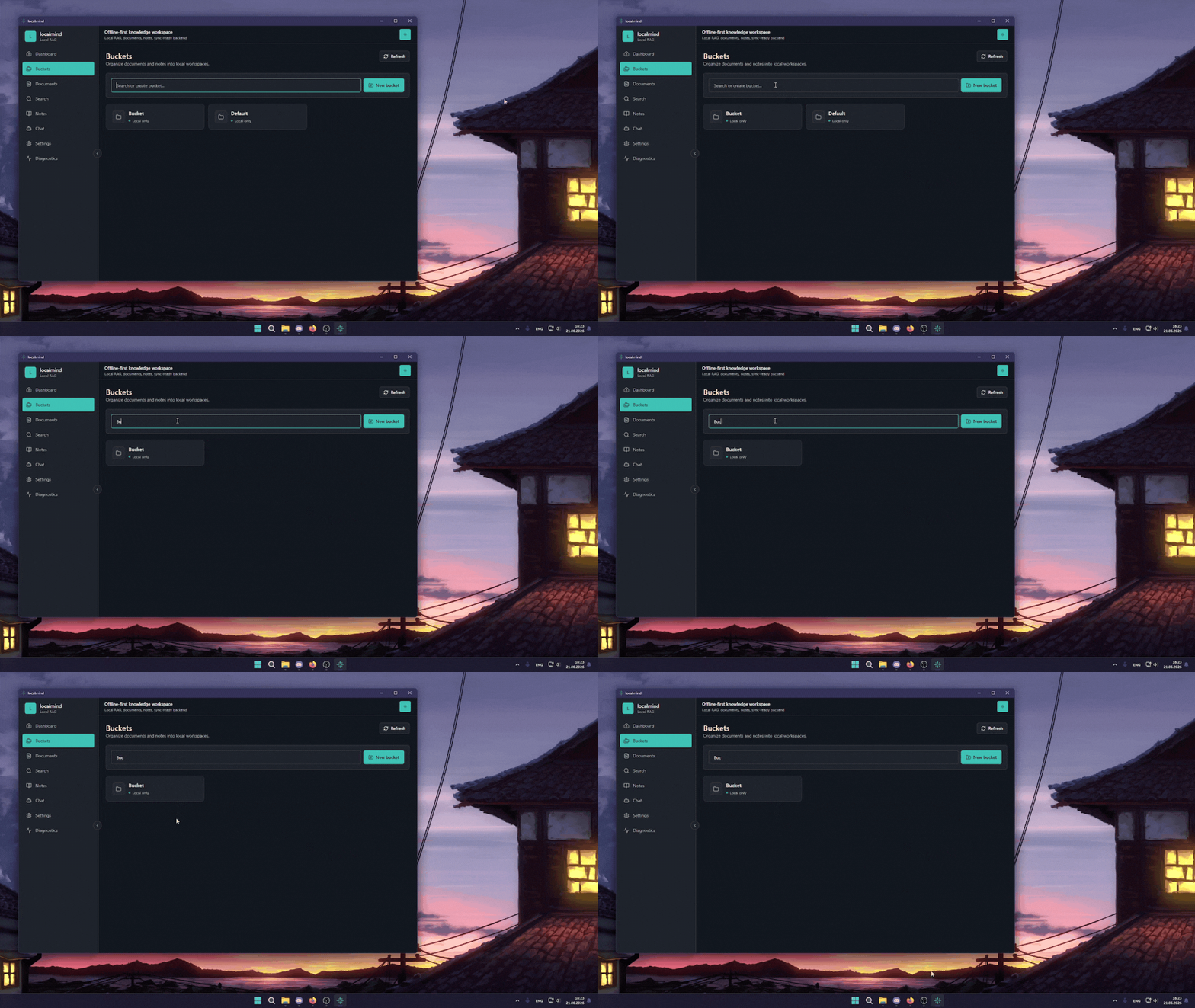
Use case: Find a specific bucket
Action: Type part of a bucket name into the bucket search field.
Result: The bucket list is filtered and only matching buckets remain visible.
GIF-06 — Rename a bucket
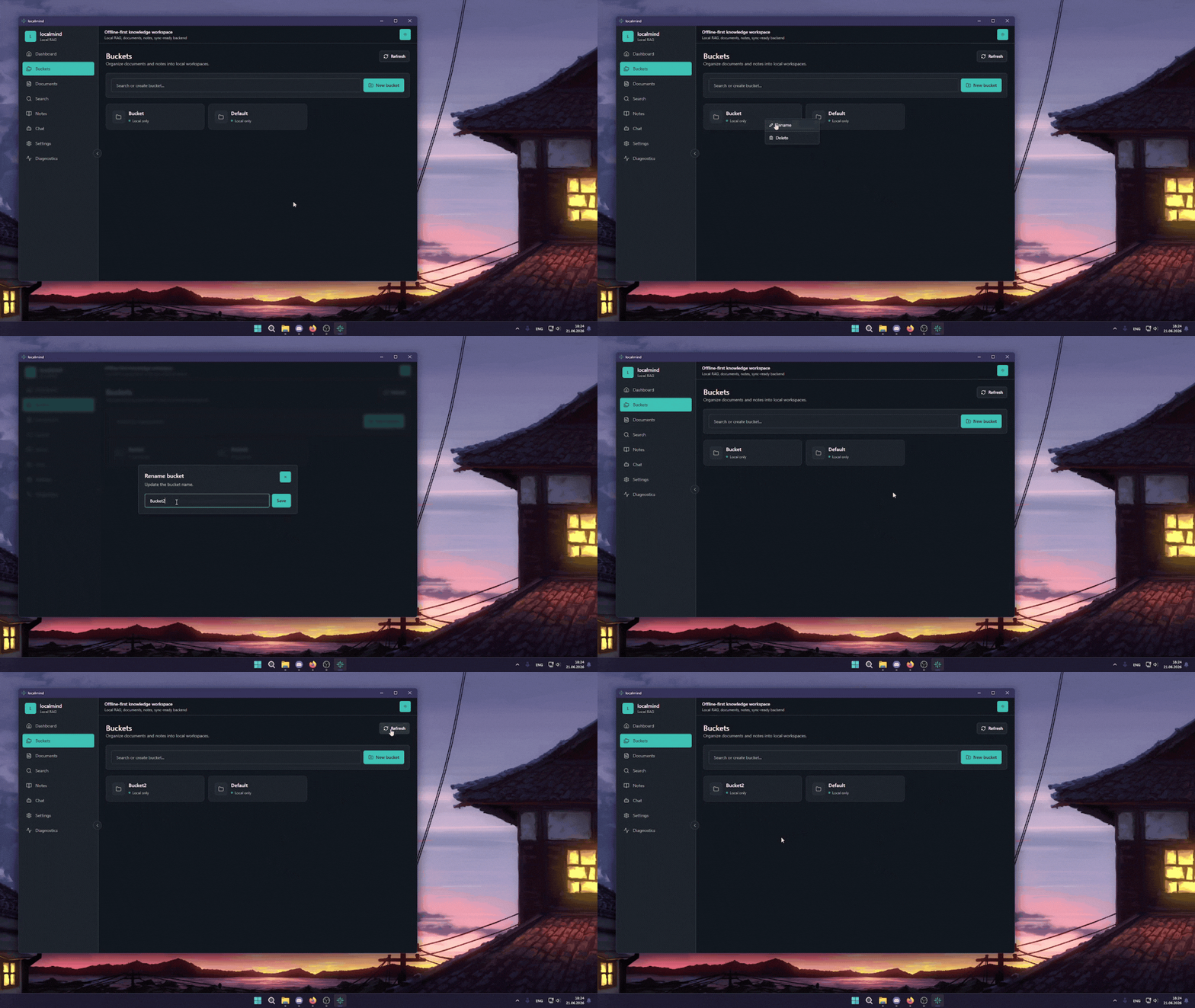
Use case: Rename an existing workspace
Action: Open bucket editing, change the name, and save the update.
Result: The bucket is displayed with its new name.
GIF-07 — Delete a bucket
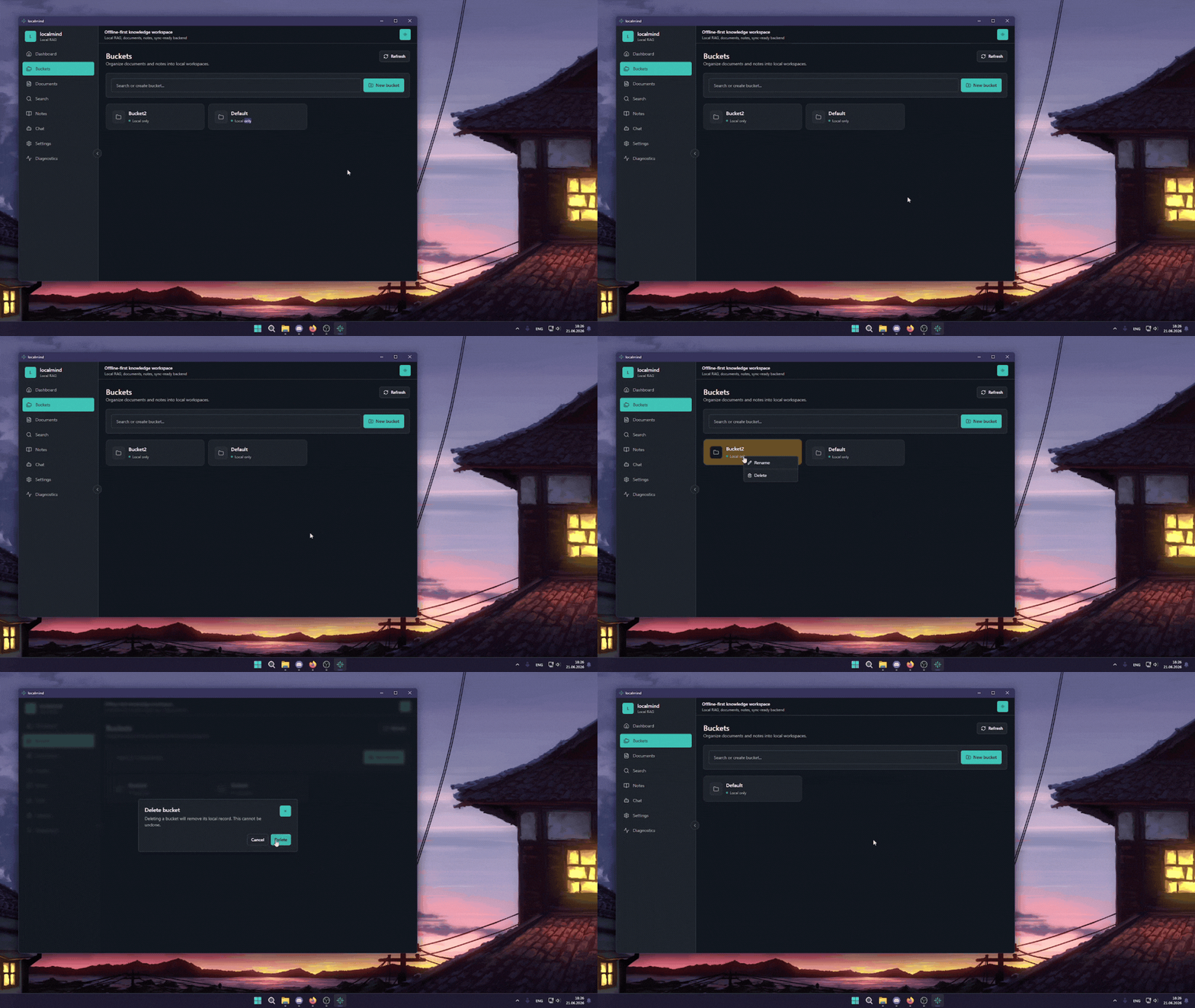
Use case: Remove an unused bucket
Action: Click delete, review the confirmation dialog, and confirm the action.
Result: The bucket is removed from the list.
Documents and indexing
GIF-08 — Upload document with button
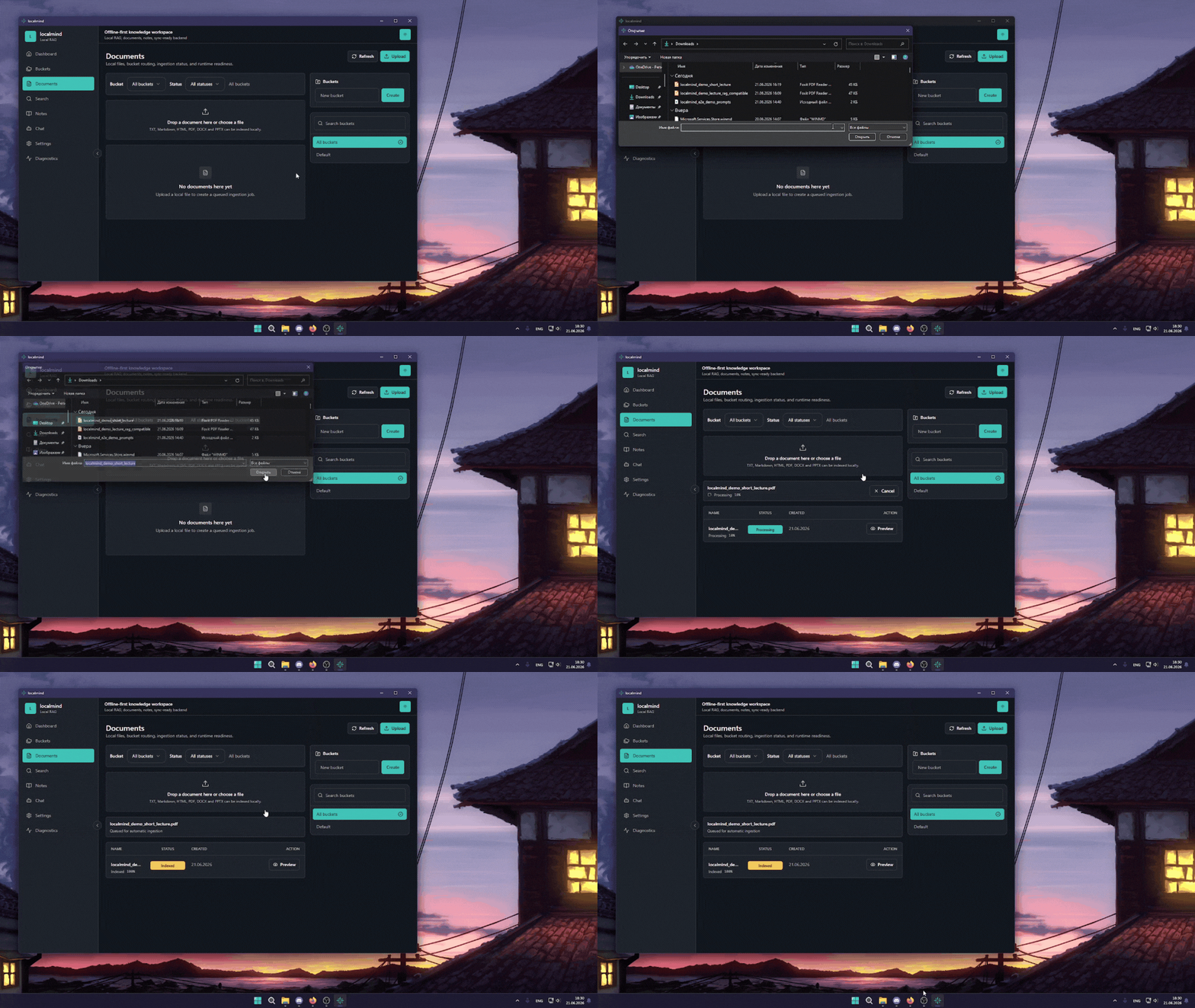
Use case: Add a document manually
Action: Open Documents, click Upload, and select a file.
Result: The document appears in the list and receives an ingestion job.
GIF-09 — Drag-and-drop upload
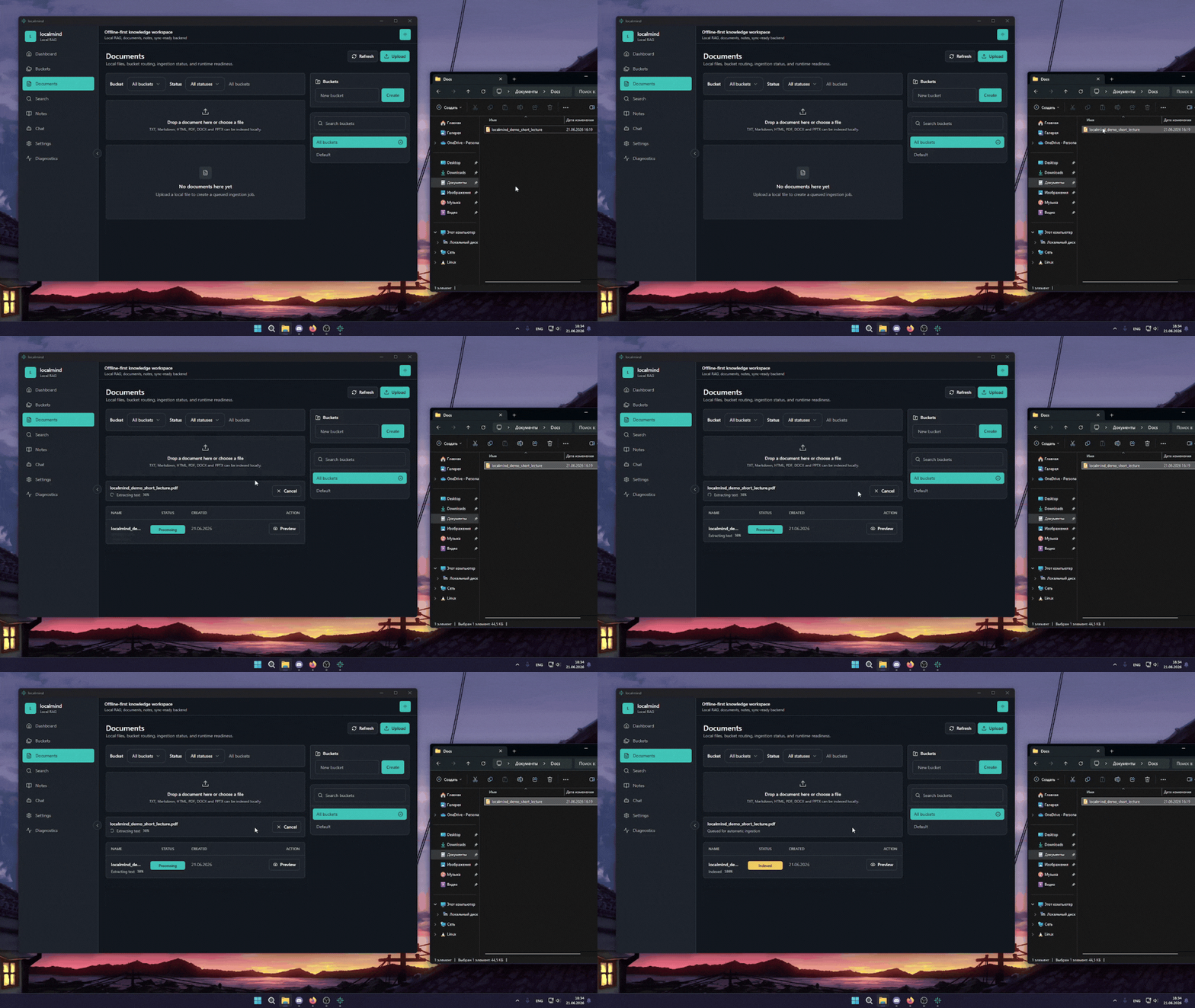
Use case: Add a document by drag and drop
Action: Drag a file into the Documents dropzone and release it.
Result: LocalMind queues the file for indexing.
GIF-10 — Filter documents by bucket
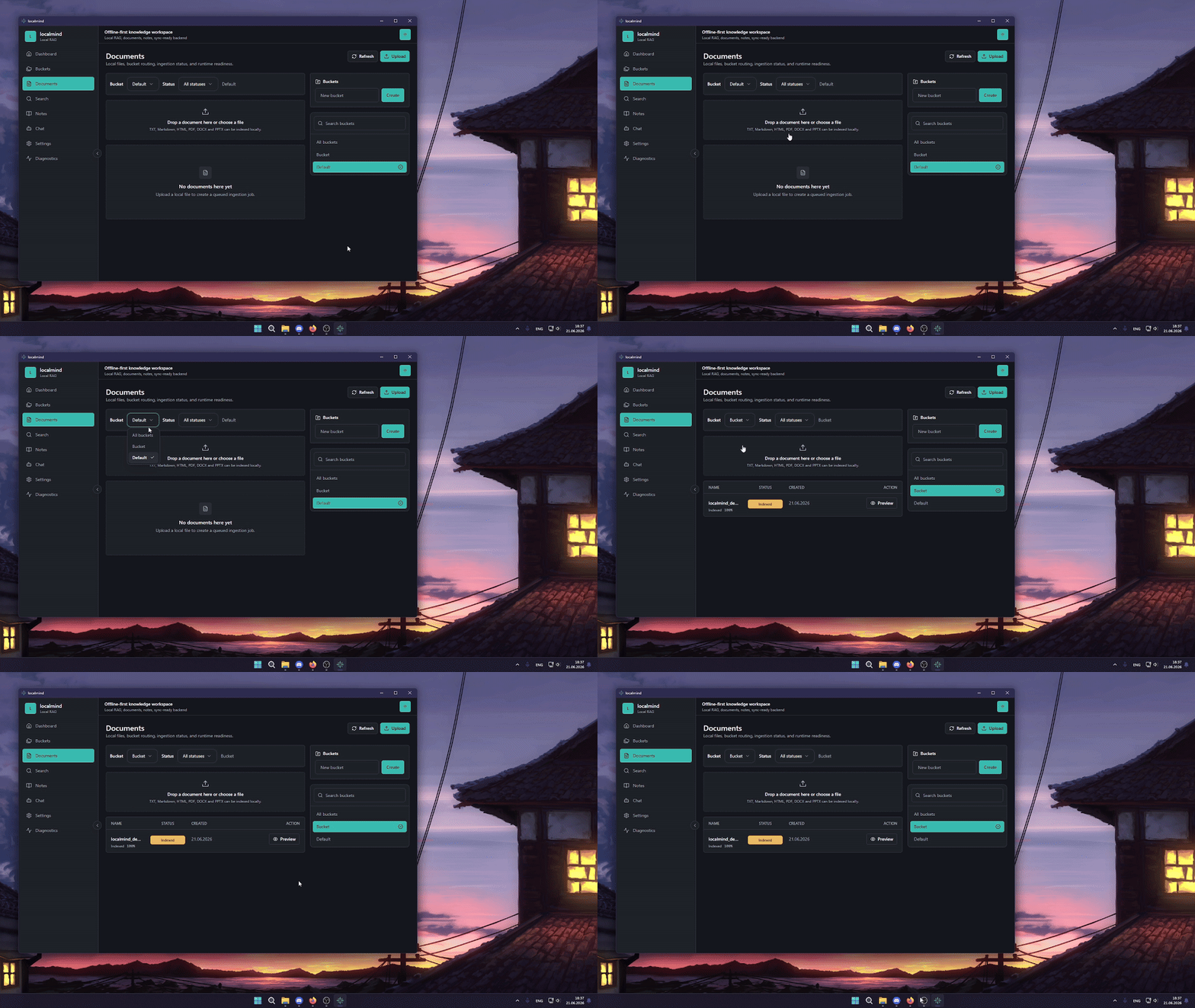
Use case: Show documents from one workspace
Action: Open the Bucket dropdown and select a specific bucket.
Result: The Documents list shows only files that belong to the selected bucket.
GIF-11 — Filter documents by status
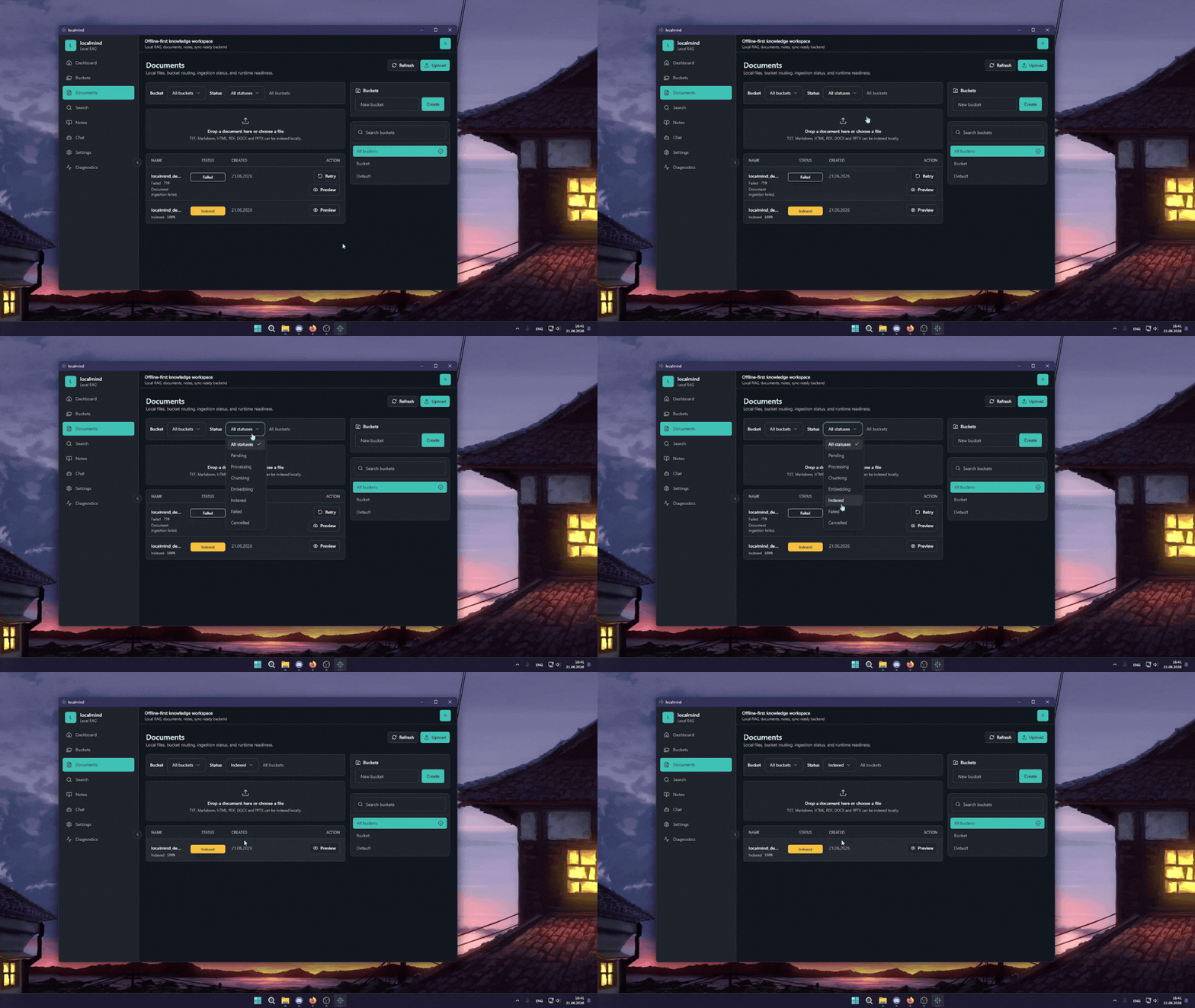
Use case: Find documents by ingestion state
Action: Open the Status dropdown and select a status filter such as Indexed, Failed, or Processing.
Result: The list updates to show documents that match the selected status.
GIF-12 — Document preview
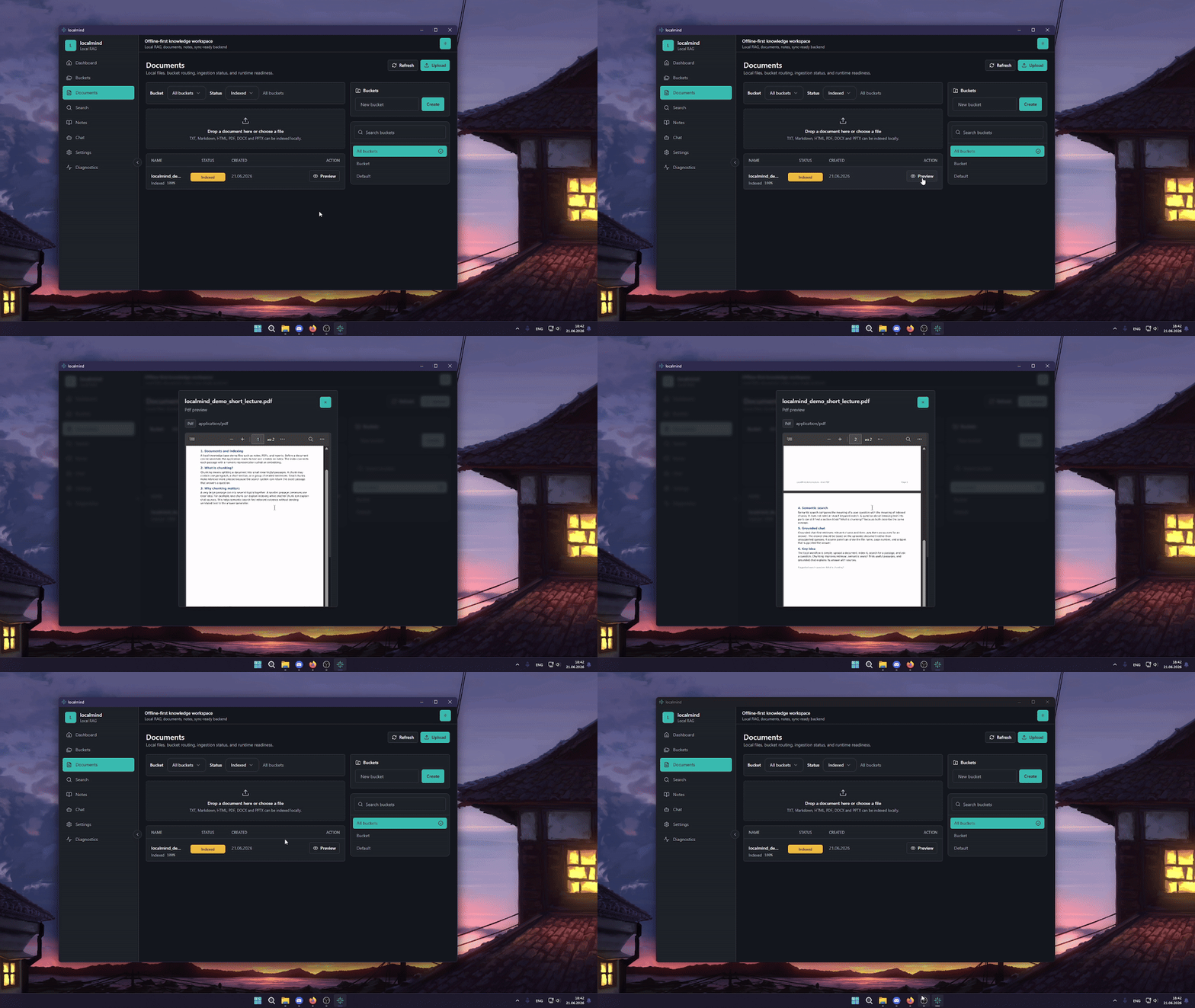
Use case: Preview document content
Action: Click Preview on a document and open the preview modal.
Result: The user can inspect the document without leaving LocalMind.
Search
GIF-13 — Semantic search
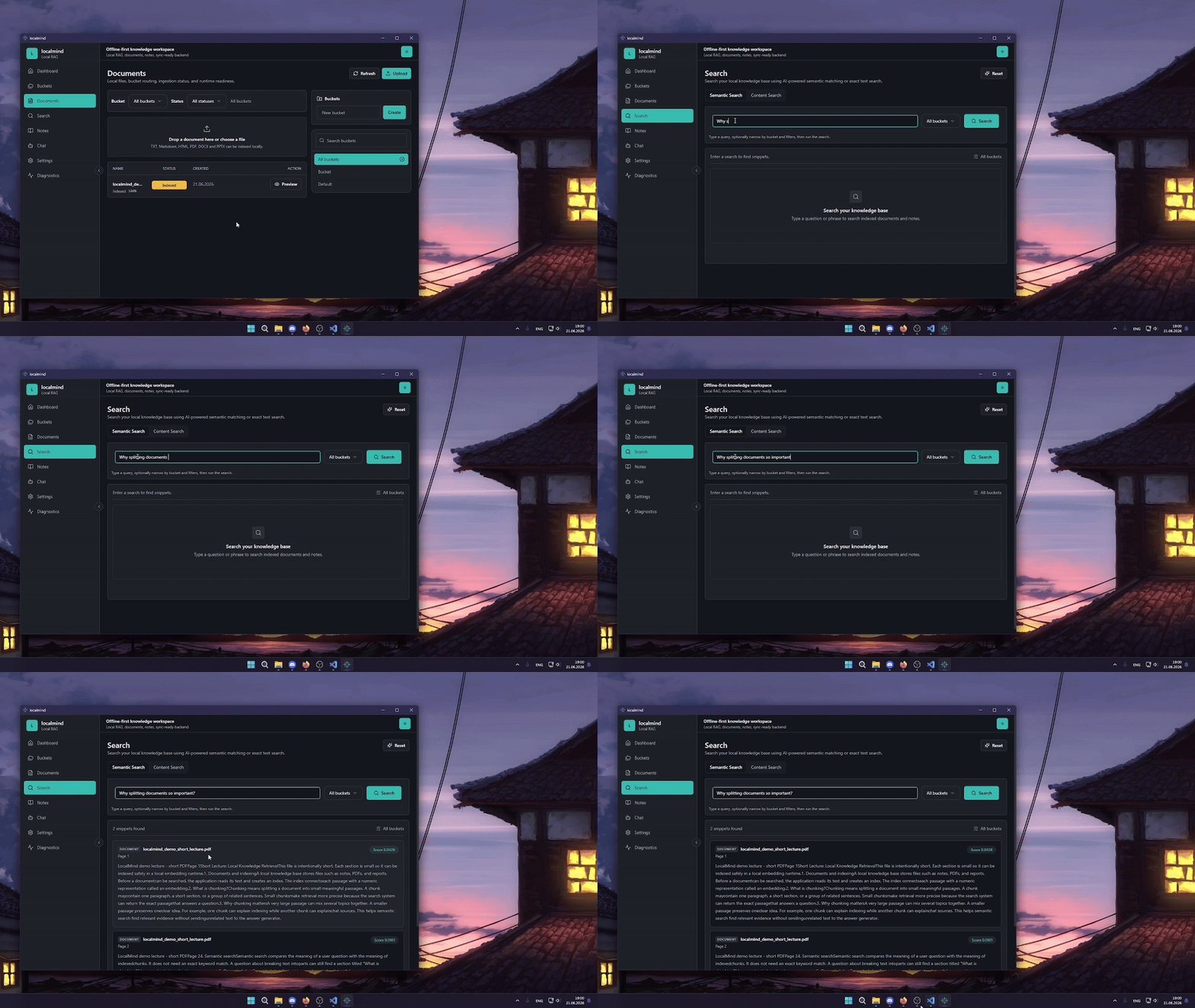
Use case: Search by meaning
Action: Select Semantic Search, enter a natural-language query, and run the search.
Result: LocalMind returns relevant snippets with document names, page numbers, and scores.
GIF-14 — Search filter by bucket

Use case: Limit search to one bucket
Action: Enter a query, select a bucket filter, and run the search.
Result: Search results are scoped to the selected workspace.
GIF-15 — Search filters with slash commands
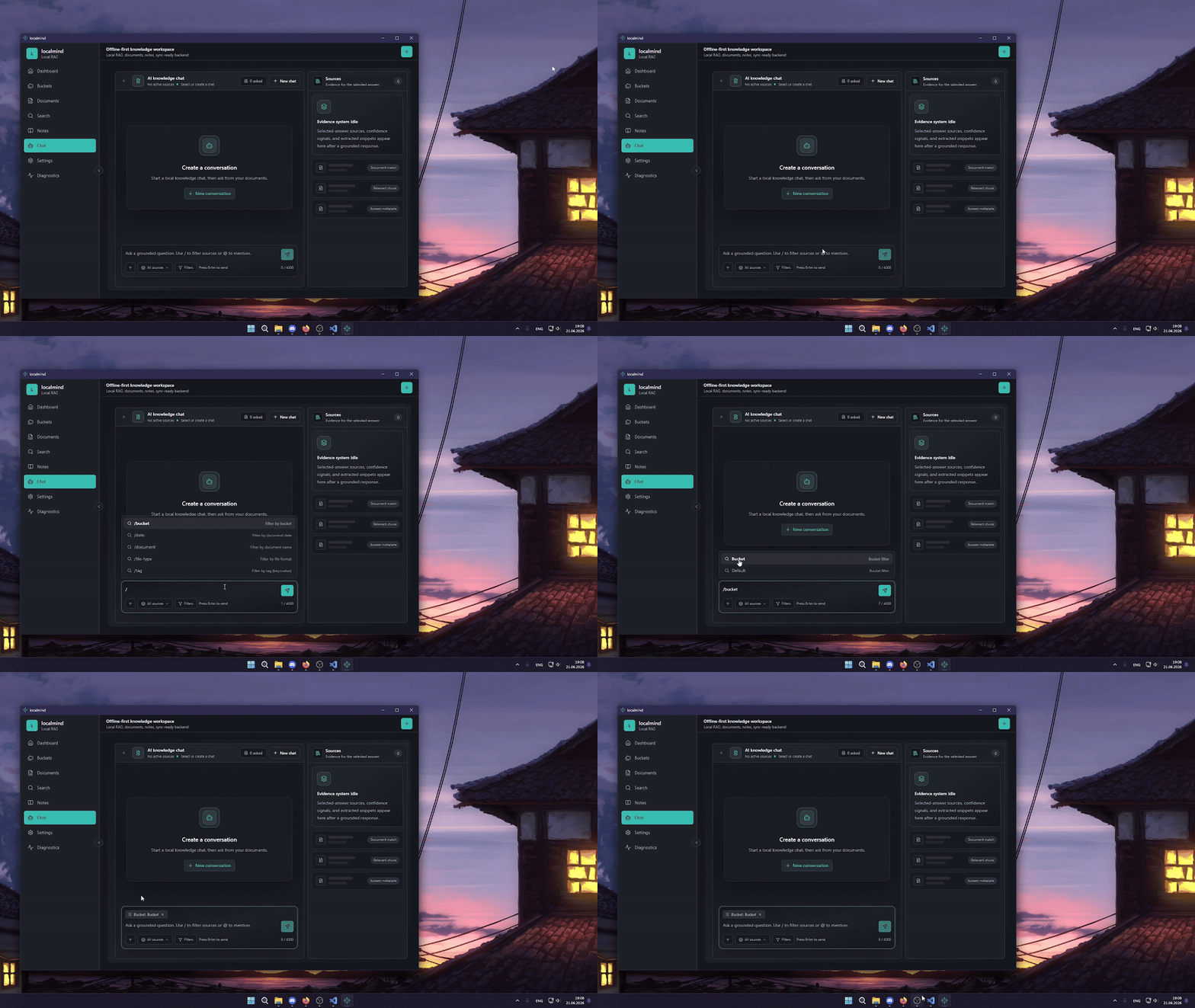
Use case: Apply filters quickly
Action: Type /, choose a suggested filter, and apply it as a chip.
Result: The user sees a fast keyboard-driven way to narrow search or chat context.
Notes and annotations
GIF-16 — Choose notes vault or bucket
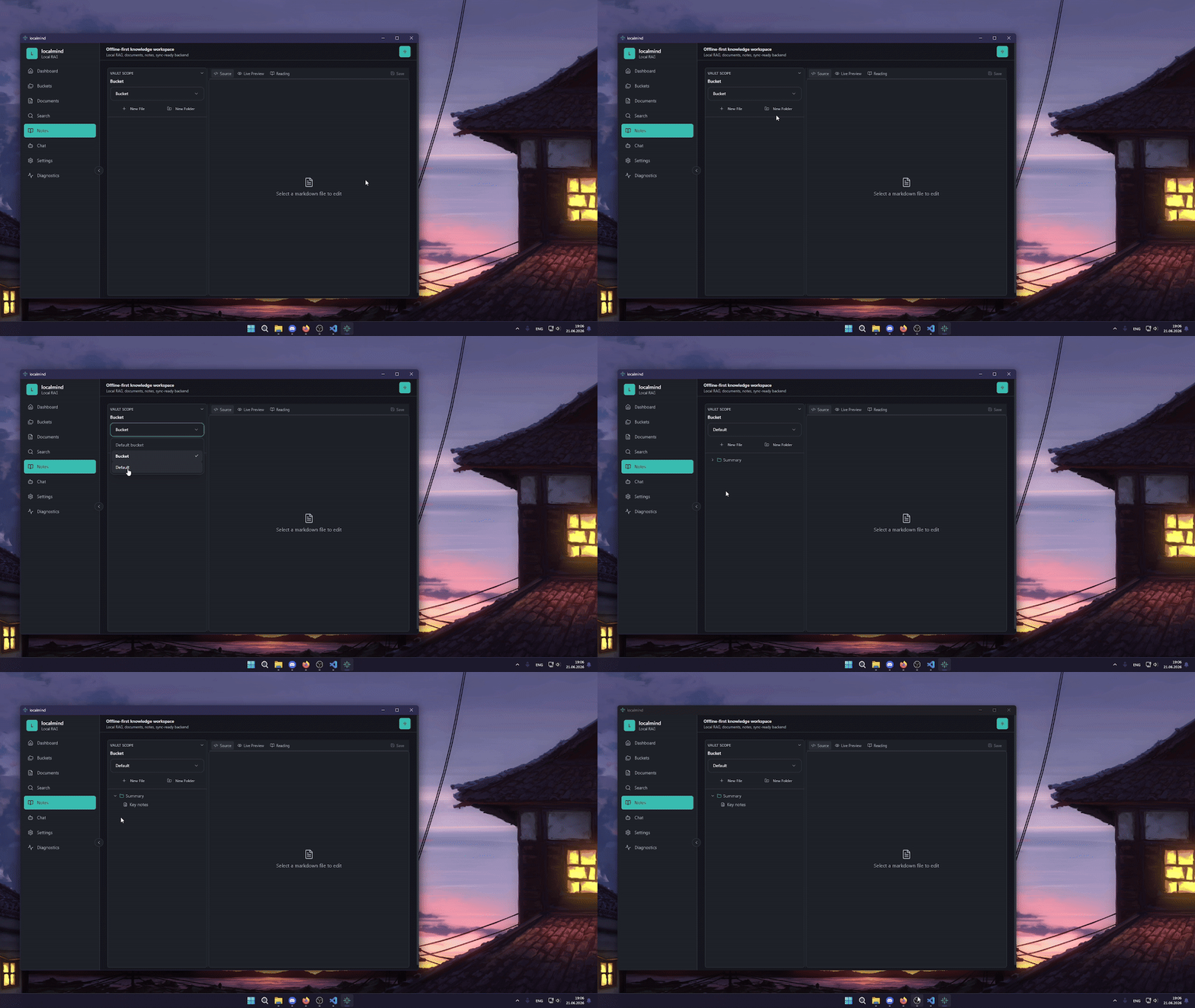
Use case: Open notes in a workspace context
Action: Open Notes and choose a bucket in Vault Scope.
Result: The notes explorer displays the note tree for the selected bucket.
GIF-17 — Create a notes folder
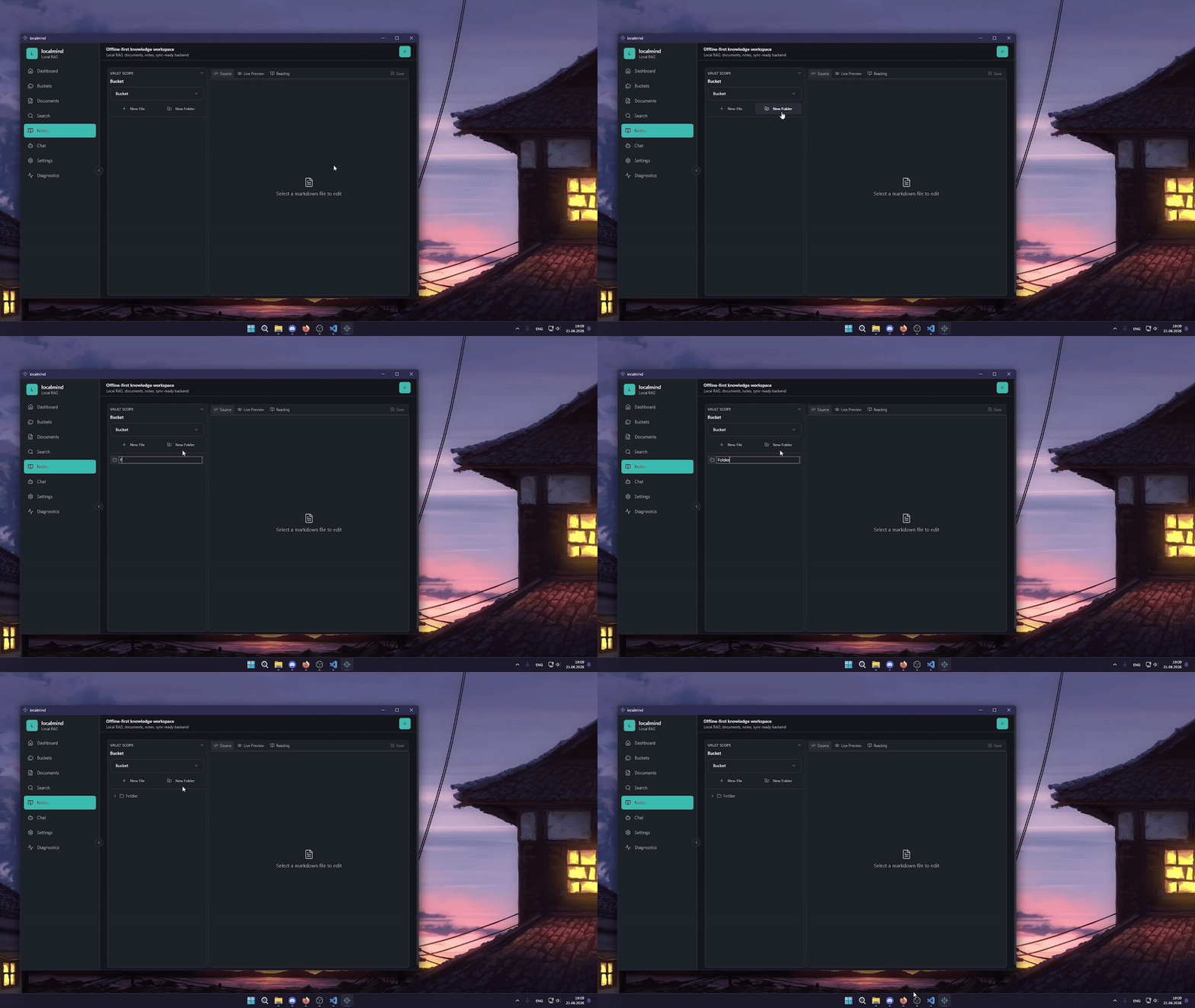
Use case: Organize notes
Action: Click New Folder, enter a folder name, and confirm.
Result: A new folder appears in the notes explorer.
GIF-18 — Create a markdown note
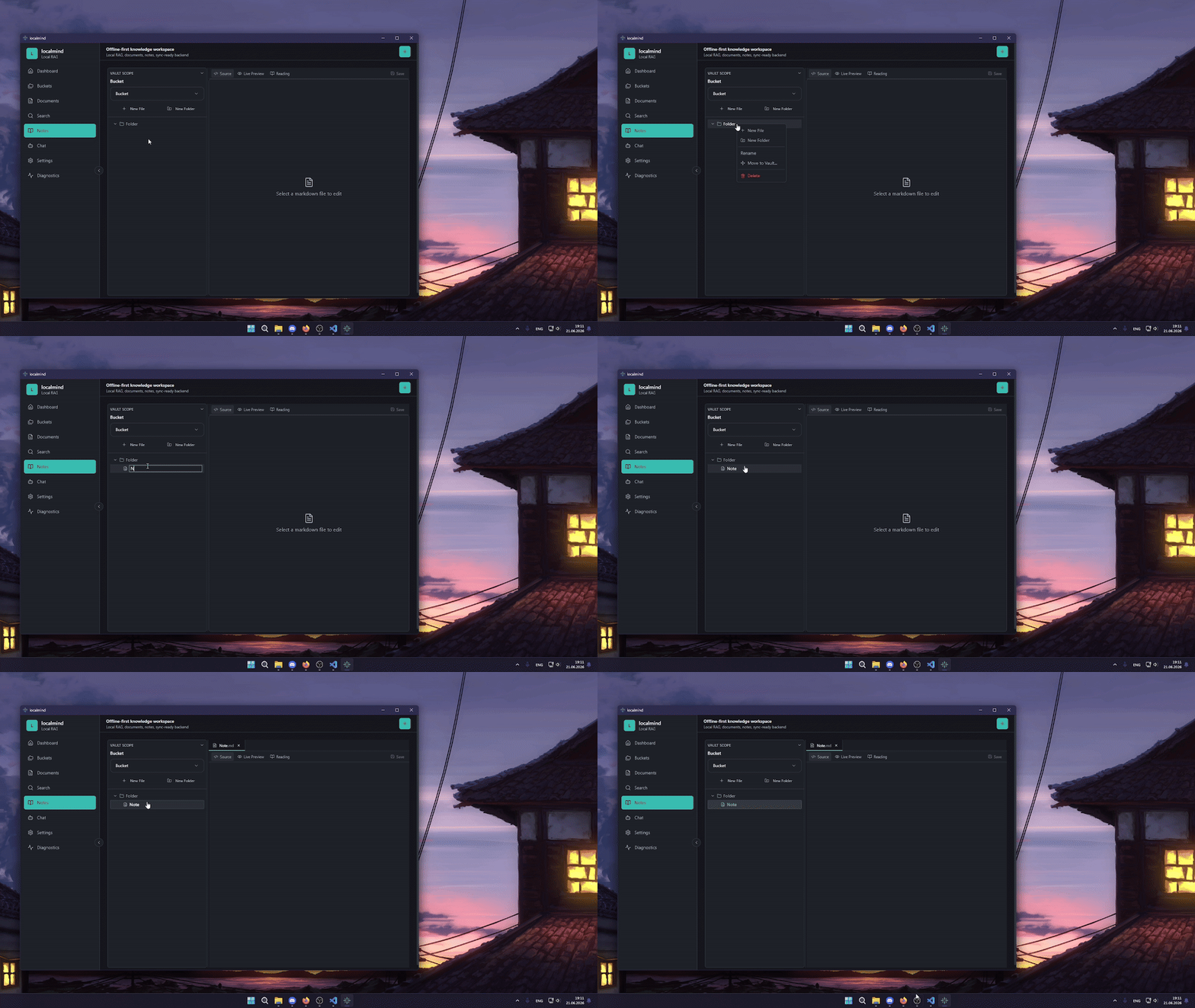
Use case: Create a local markdown note
Action: Click New File, enter a note name, and open it.
Result: The note opens in the editor and is ready for writing.
GIF-19 — Edit and save a note
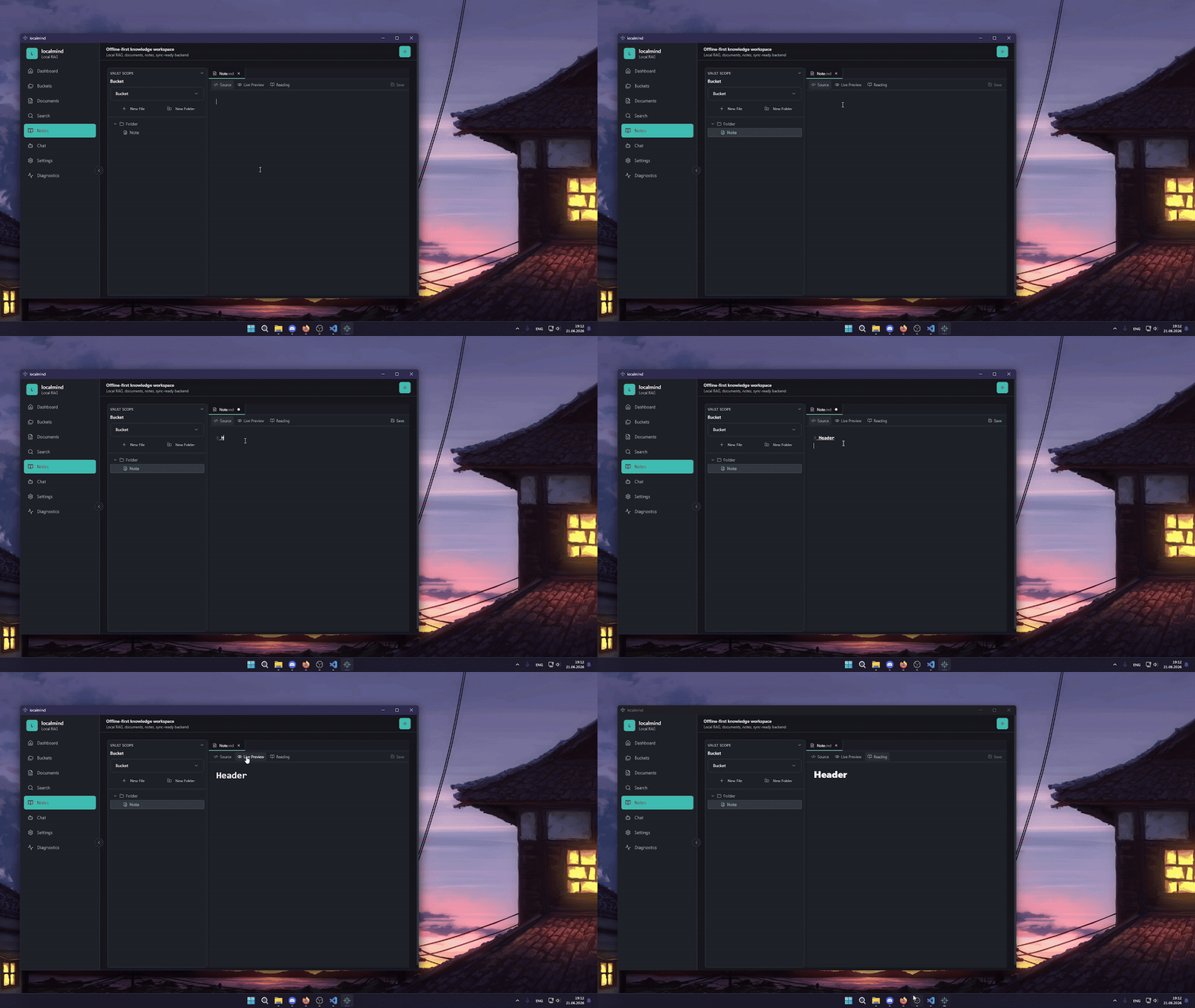
Use case: Write an annotation
Action: Enter markdown text, notice the dirty state, and click Save.
Result: The note is saved locally.
GIF-20 — Note properties
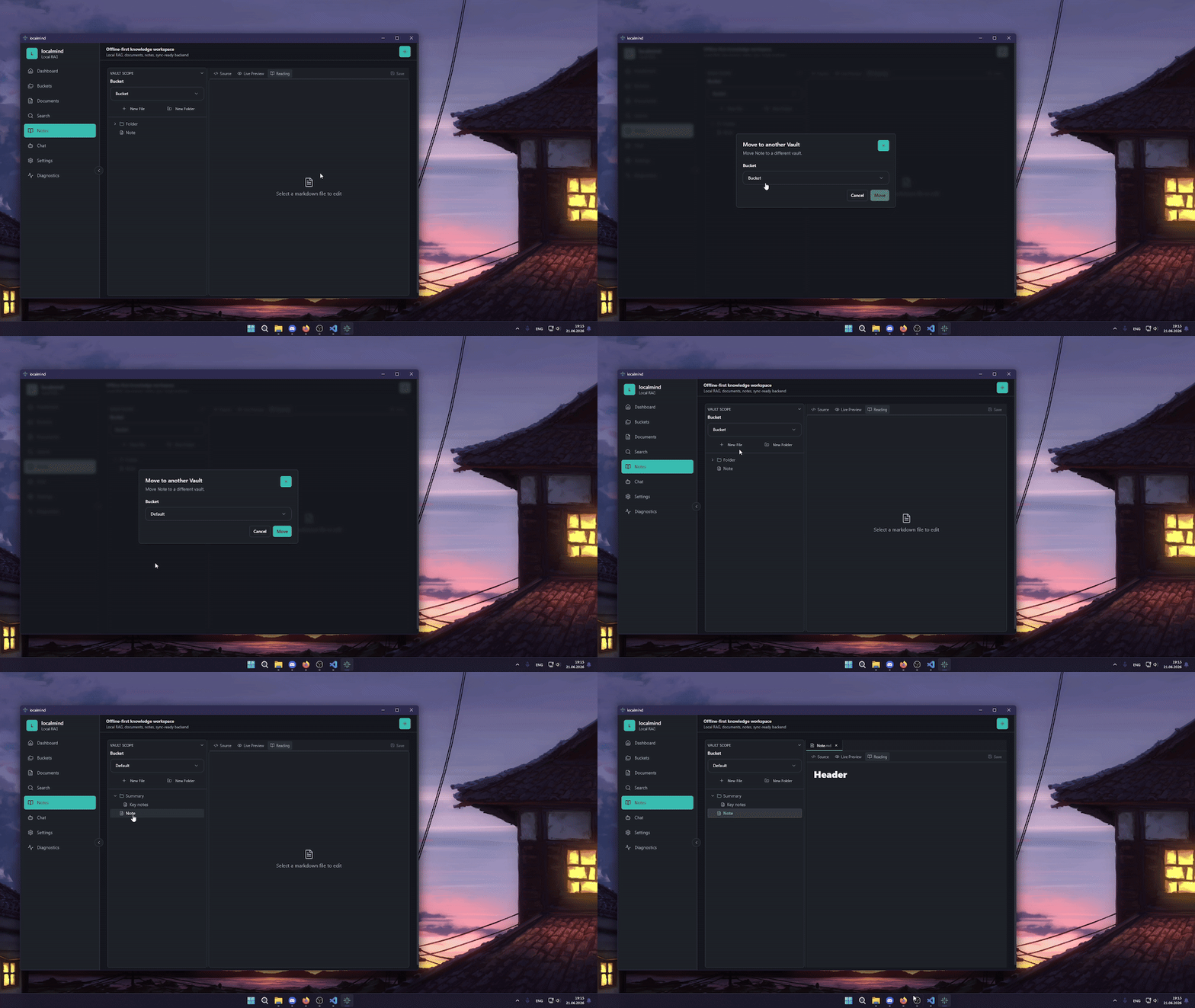
Use case: Inspect note metadata
Action: Open the note context menu and select Properties.
Result: The properties panel shows metadata and note-related settings.
Chat and RAG
GIF-21 — Create a new chat
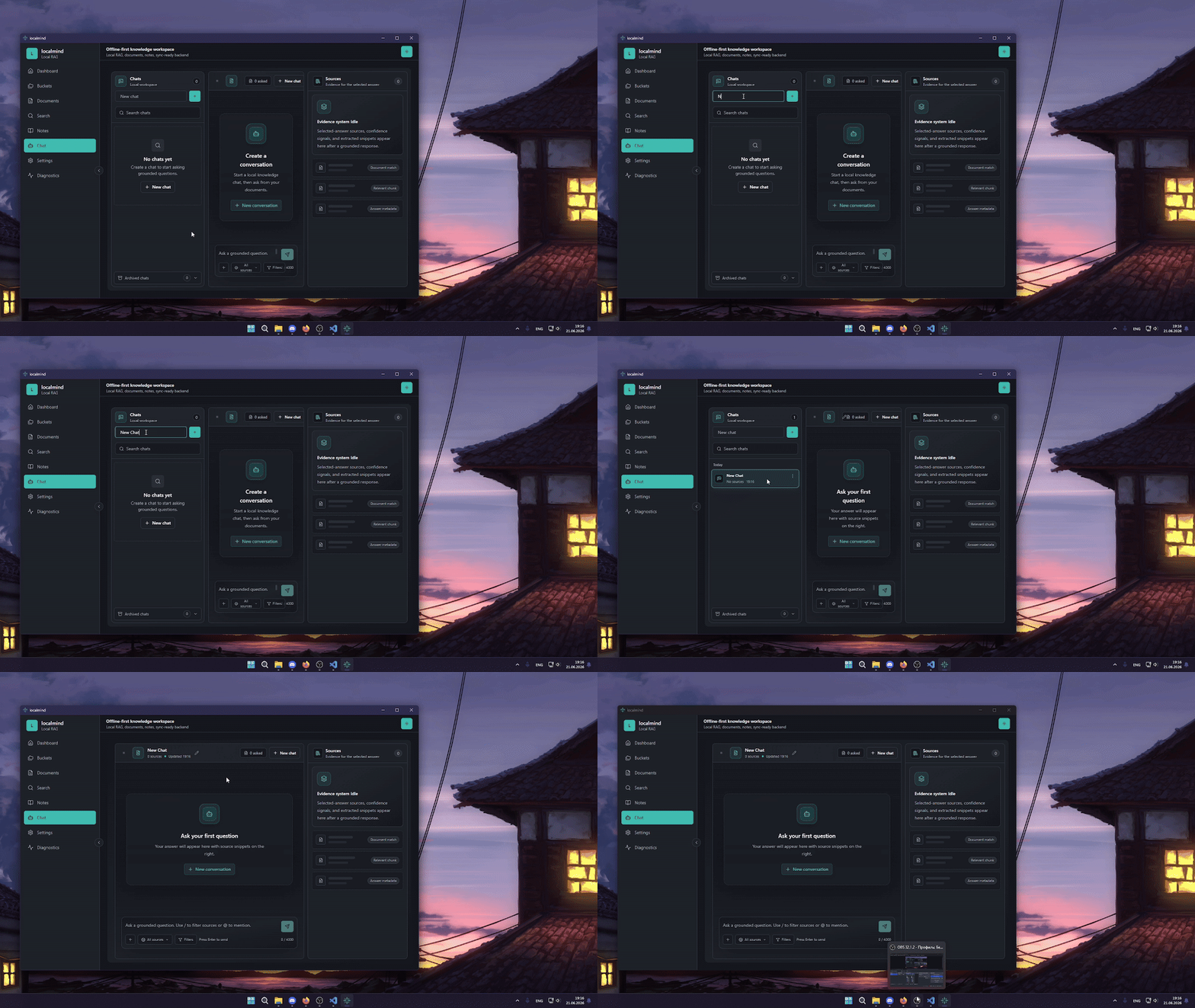
Use case: Start a separate conversation
Action: Open Chat and create a new conversation.
Result: A new chat is created and ready for questions.
GIF-22 — Ask a question about a document
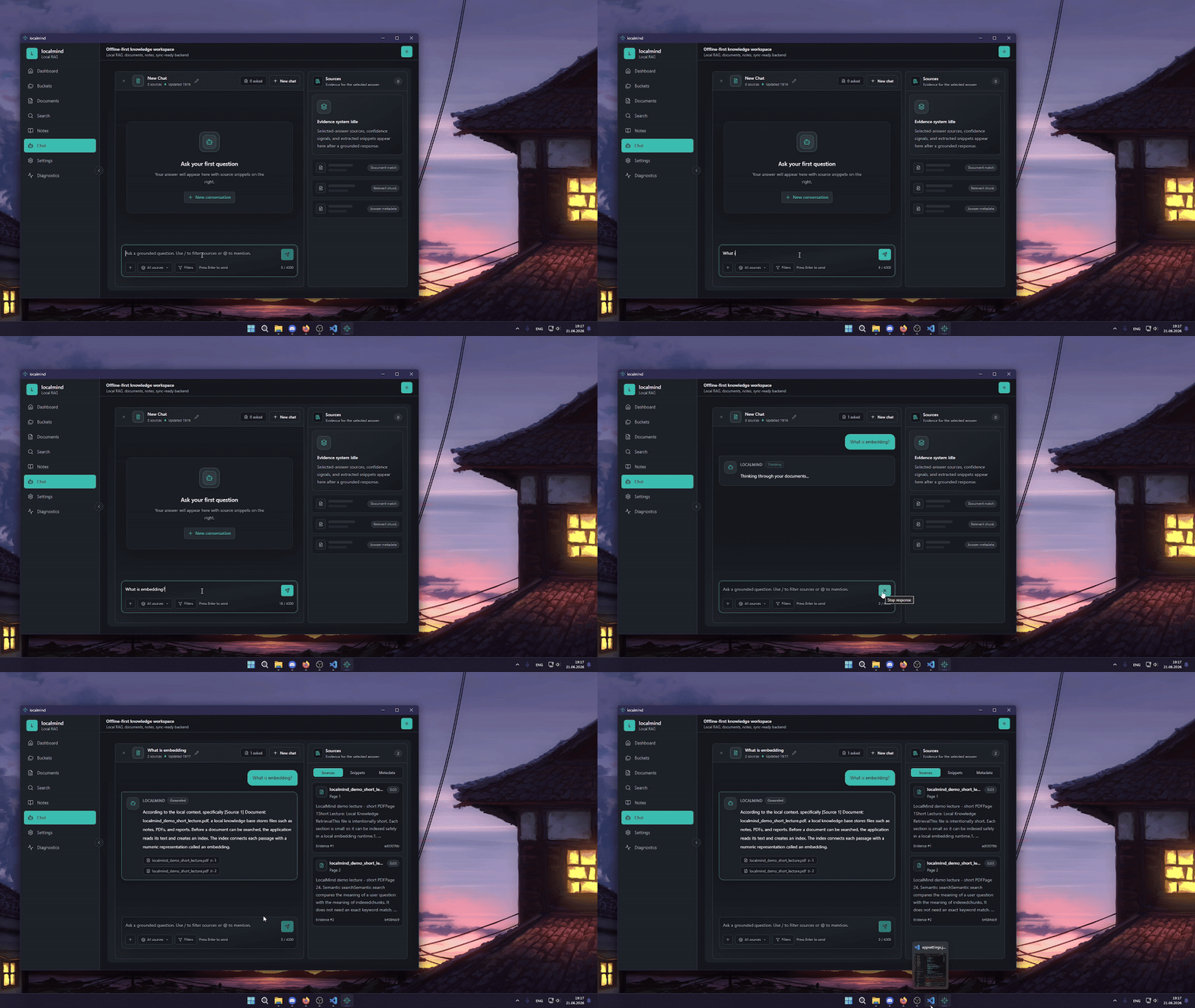
Use case: Use RAG over local documents
Action: Type a question, send it, and wait for the generated answer.
Result: LocalMind answers using the local knowledge base.
GIF-23 — Sources panel
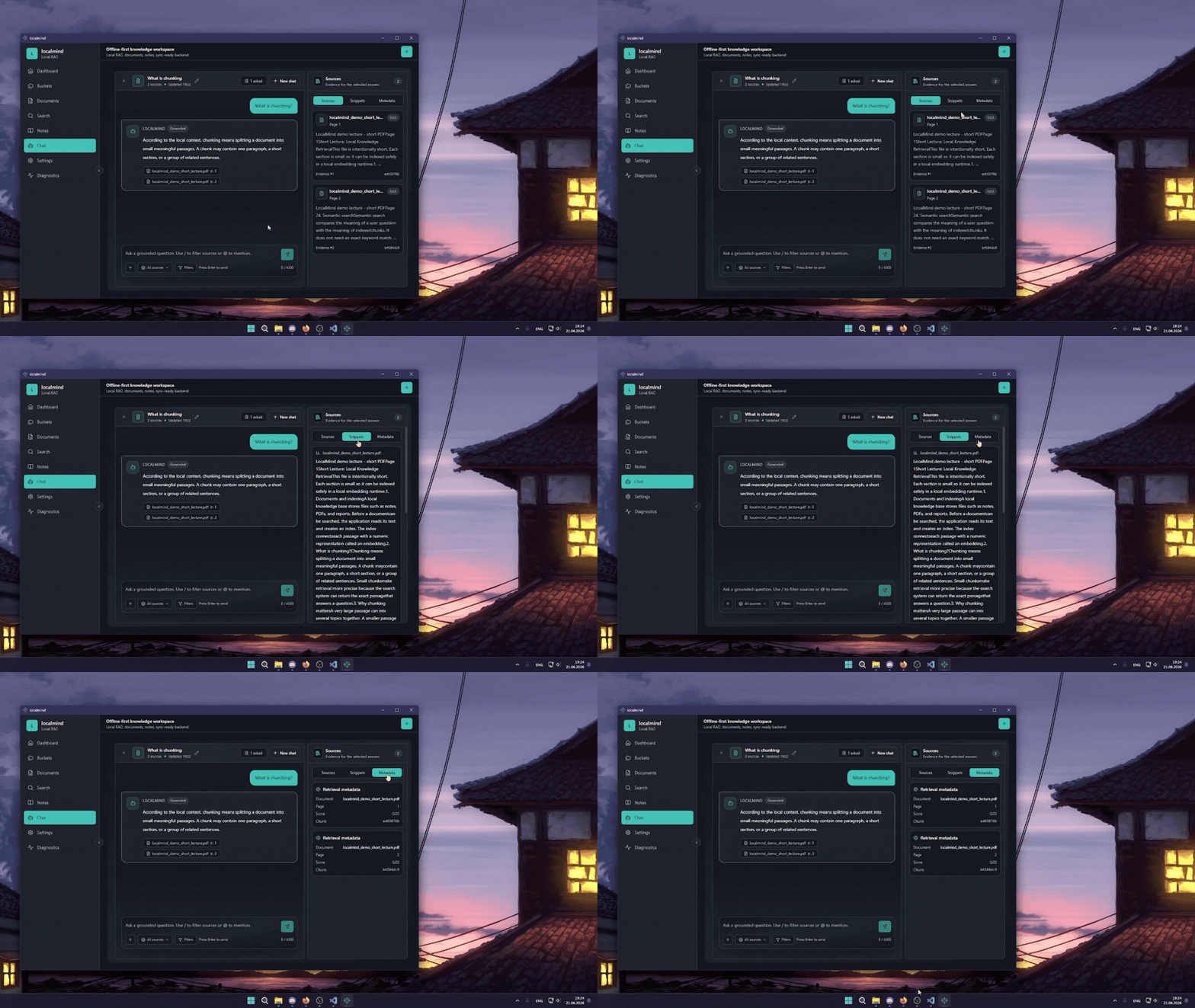
Use case: Verify the answer
Action: Select an assistant message and open the Sources panel.
Result: The answer is grounded with document snippets and source references.
GIF-24 — Chat filter by bucket

Use case: Ask questions inside one bucket
Action: Type /bucket, choose a bucket suggestion, and ask a question.
Result: The chat is scoped to the selected bucket using a visible filter chip.
GIF-25 — Rename or delete a conversation

Use case: Manage chat history
Action: Select a conversation, rename it, then open the delete dialog.
Result: The user sees how to organize or remove conversations.
Settings and diagnostics
GIF-26 — AI settings
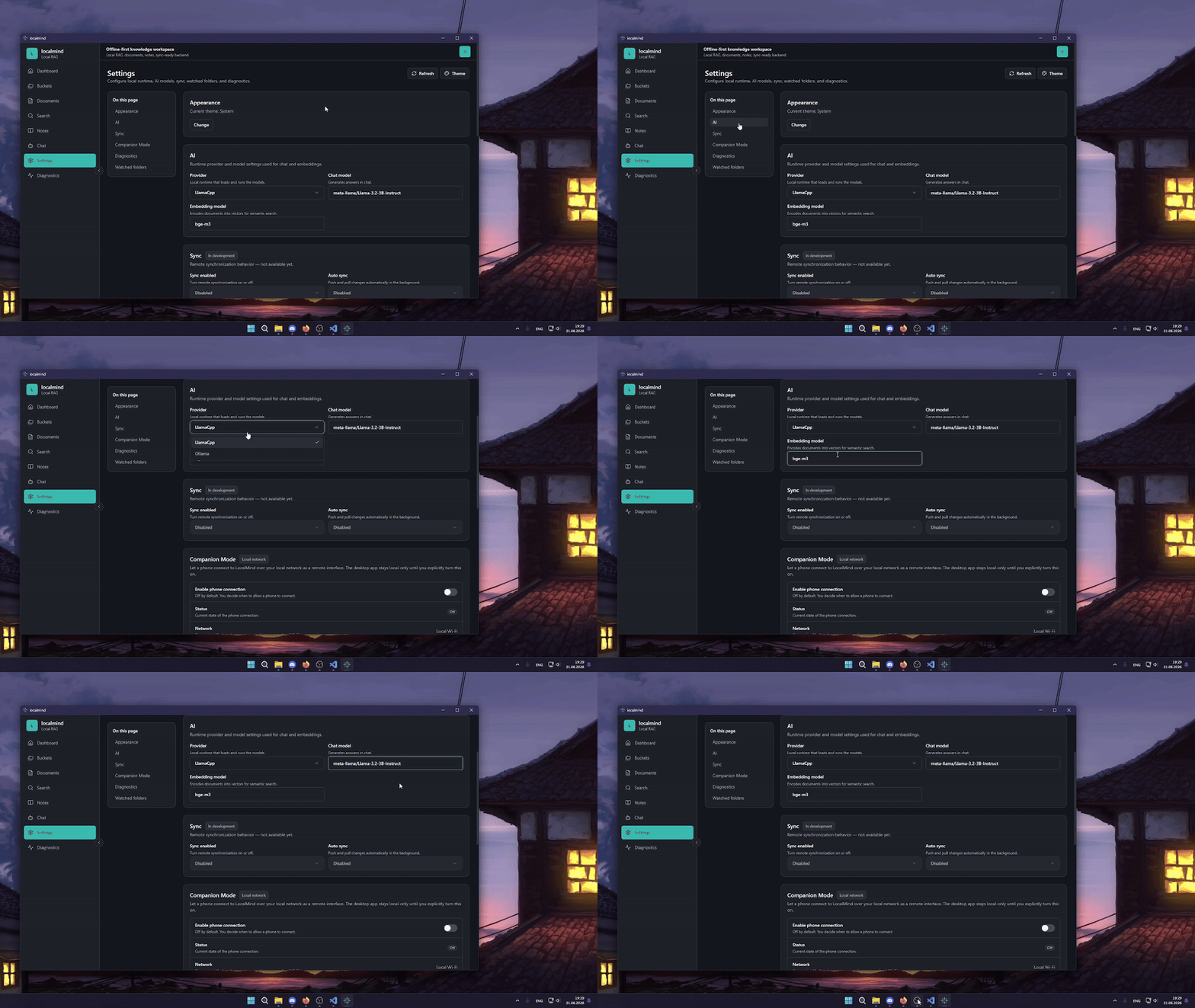
Use case: Configure local AI runtime
Action: Open Settings and review AI provider, chat model, and embedding model settings.
Result: The user understands where LocalMind AI configuration is managed.
GIF-27 — Rescan watched folder
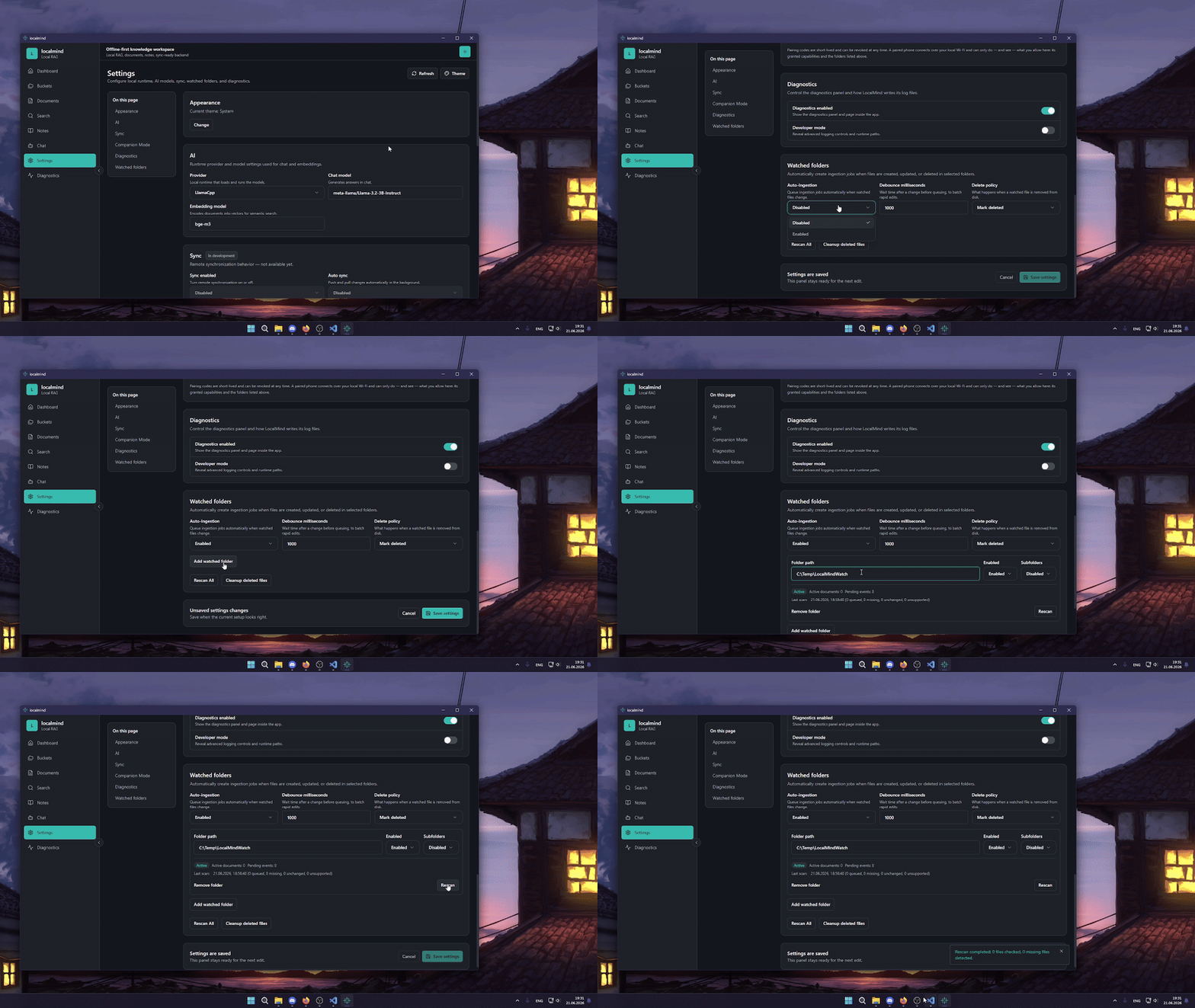
Use case: Refresh watched folder content
Action: Click Rescan and wait for the scan status/result.
Result: LocalMind rescans the watched folder and updates the last scan result.
GIF-28 — Cleanup deleted files
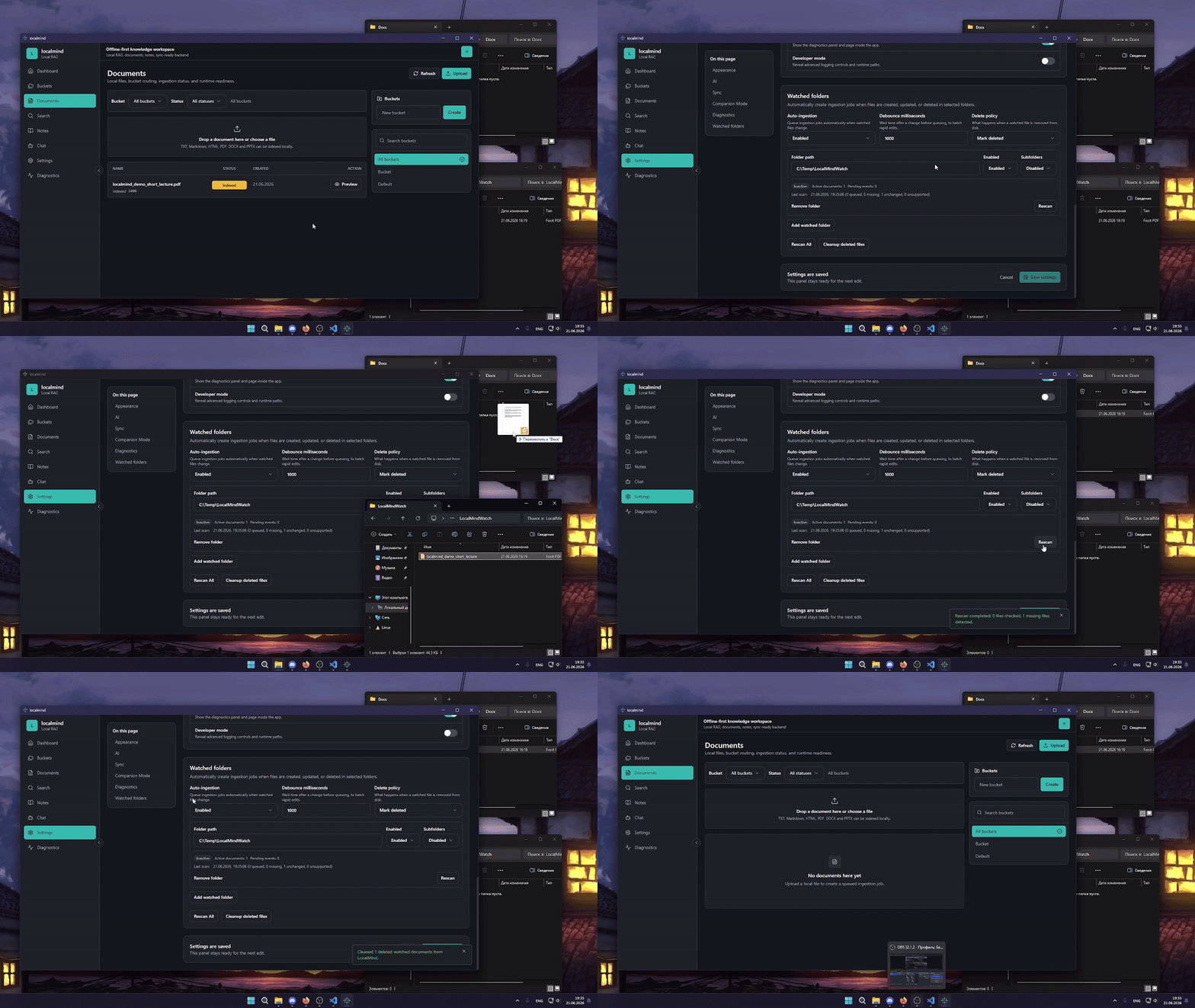
Use case: Clean removed watched files
Action: Click Cleanup deleted files and confirm the cleanup dialog.
Result: Deleted watched records are removed from LocalMind.
GIF-29 — Diagnostics logs
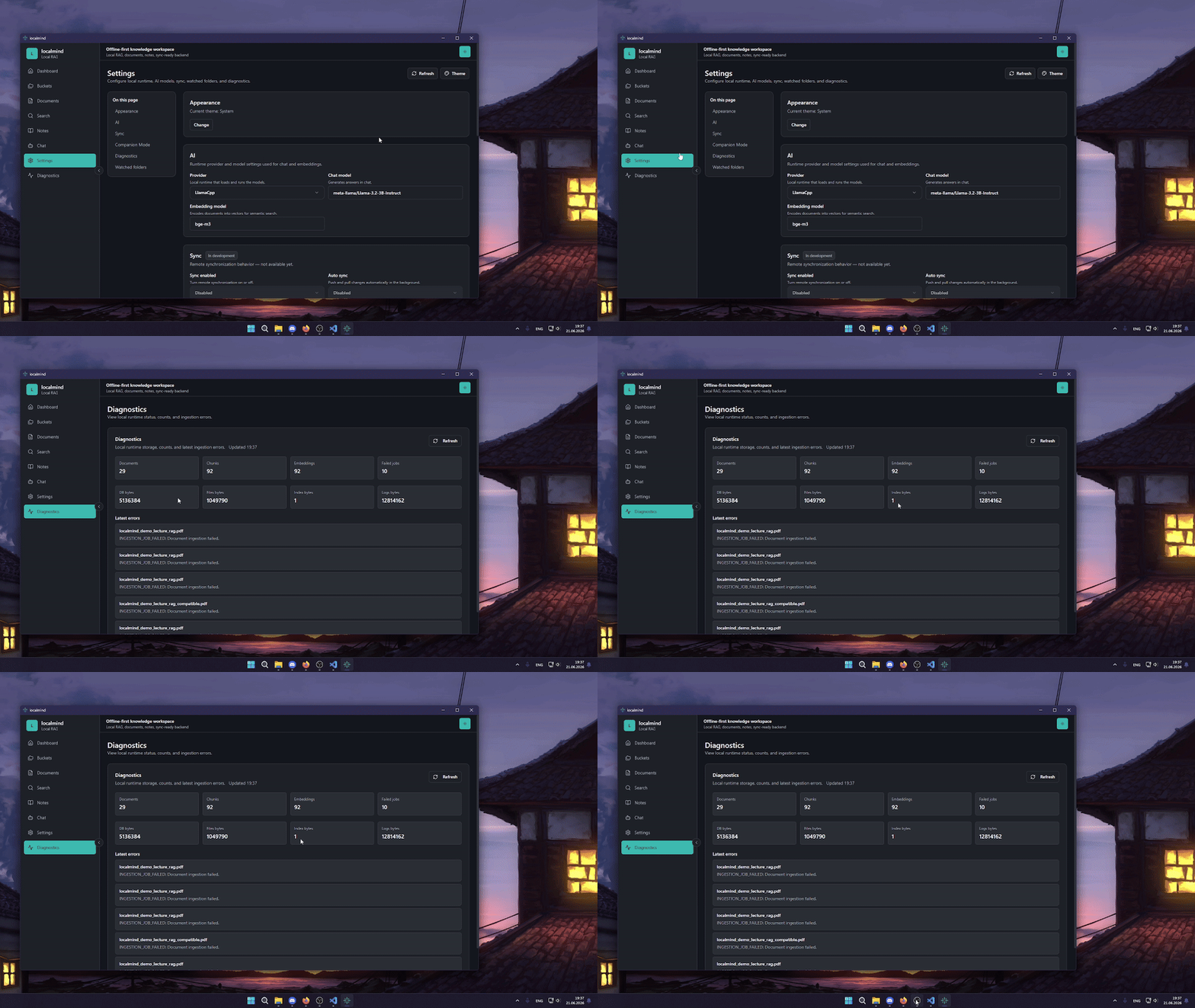
Use case: Inspect diagnostic logs
Action: Enable Developer mode, review log settings, and show the Clear logs action.
Result: The user knows where to inspect and maintain diagnostics data.
3. Recommended sample files
Use neutral demo files only. Do not record personal documents, real local paths, private notes, credentials, or customer data.
| File | Purpose |
|---|---|
ai-research-summary.pdf |
Semantic search, page numbers, and source references. |
project-notes.md |
Quick upload, content search, and note-like material. |
coursework-requirements.docx |
Office document indexing support. |
presentation-outline.pptx |
Slide-based indexing support. |
broken-document.pdf |
Failed ingestion, retry, and error message demo. |
4. Suggested folder structure
demo-assets/
  e2e/
    01-full-knowledge-base-workflow.mp4
    02-quick-document-to-answer.mp4
    03-watched-folders-companion.mp4

  gifs/
    startup/
    buckets/
    documents/
    search/
    notes/
    chat/
    settings/
    companion/

  sample-files/
    ai-research-summary.pdf
    project-notes.md
    coursework-requirements.docx
    presentation-outline.pptx
    broken-document.pdf
5. Recorded coverage map
| Feature area | Recorded GIFs |
|---|---|
| Startup and app state | GIF-01, GIF-02, GIF-03 |
| Buckets | GIF-04, GIF-05, GIF-06, GIF-07 |
| Documents and indexing | GIF-08, GIF-09, GIF-10, GIF-11, GIF-12 |
| Search | GIF-13, GIF-14, GIF-15 |
| Notes and annotations | GIF-16, GIF-17, GIF-18, GIF-19, GIF-20 |
| Chat and RAG | GIF-21, GIF-22, GIF-23, GIF-24, GIF-25 |
| Settings and diagnostics | GIF-26, GIF-27, GIF-28, GIF-29 |